Sell custom products with Printify
Amazon Seller Central is the platform where Amazon sellers manage product listings, customer orders, ads, and fulfillment in one place.
If you’re selling on Amazon, this dashboard is your day-to-day control center. It’s where you manage product listings, track customer orders, monitor account health, and see what’s actually selling (and what’s not).
In this guide, we break it down without the noise:
- What Amazon Seller Central is and how it works
- How to set up and manage an Amazon seller account
- How listings, pricing, and order fulfillment really work
- How sellers use ads and reports to track sales and business performance
- Common account health issues – and how to fix them fast
- How Printify fits into Seller Central for print-on-demand (POD) selling
Whether you’re getting started or cleaning up an existing setup, this guide walks through Seller Central the way real sellers use it – clear, practical, and straight to the point.
What is Amazon Seller Central?
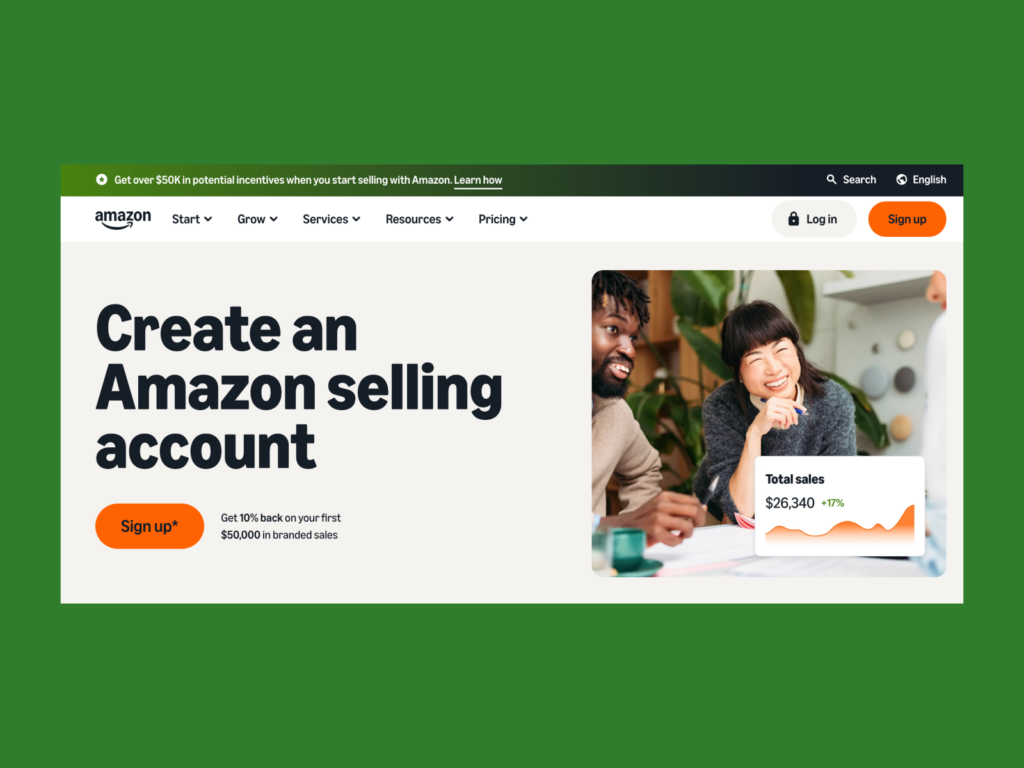
Amazon Seller Central is the online platform third-party sellers use to sell products on Amazon and manage everything behind the scenes.
When you open an Amazon Seller Central account, you get access to powerful tools and programs for managing inventory, pricing, fulfillment, and advertising.
Think of Seller Central as the backend hub that connects your products to Amazon’s catalog and makes them available to Amazon customers.
There are two main ways to sell on Amazon:
- As a third-party seller using Seller Central
- Or as a direct vendor through Amazon Vendor Central (invite-only)
If you’re starting out or growing a small business, Seller Central is the path you’ll take. It’s designed to support everyone – from beginners looking to start selling to brand owners running a full Amazon store.
Key features of your Seller Central account:
- Managing product listings in Amazon’s catalog
- Access to business reports and sales data
- Tools for advertising, pricing, and order fulfillment
- Built-in account health monitoring
- Access to the Selling Partner Appstore and Seller University
Seller account basics
To get started, you’ll need to set up a seller account – the foundation of your Amazon business. This gives you access to your Seller Central dashboard, where you manage product listings, customer orders, returns, and account health.
Here’s how to choose the right selling plan, what you’ll need to register, and how to get approved fast.
Which Amazon selling plan is right for you?
There are two types of Amazon seller account plans:
- Individual plan
- Best for beginners who want to start selling without a monthly fee
- Amazon charges $0.99per sale
- Limited access to advanced features like bulk uploads or advertising
- Professional plan
- Designed for professional sellers or growing brands
- $39.99/month flat fee
- Unlocks tools like bulk listing, sponsored ads, and integration with the Amazon seller app
When comparing Amazon plans, the professional plan makes sense if you’re serious about scaling. It unlocks access to advanced tools and eligibility for Fulfillment by Amazon (FBA) and Amazon Brand Registry.
What you need to create an Amazon seller account
To open an Amazon selling account, you’ll need:
- A valid bank account
- A credit card that can be charged internationally
- Government-issued ID
- Tax information (like a TIN or EIN)
- A working phone number
- Basic business information (legal name, address, etc.)
Your Amazon Seller Central account setup must match your documents exactly, or your application can get flagged during review.
How long does Amazon account verification take?
Verification usually takes 1-3 business days, but delays can happen if document uploads are blurry or inconsistent.
Tips to speed up verification:
- Make sure all submitted documents are clear and not expired
- Double-check that your business name, bank account, and tax information match exactly
- Be ready to answer questions via email or a short video call
- Check your notification preferences so you don’t miss updates
Once approved, your Amazon Seller Central account will be live and ready for action.
Navigating the Seller Central dashboard
Once your Amazon Seller Central account is approved, the next step is getting comfortable with the dashboard. This is where you’ll run nearly every part of your business – from creating product listings to reviewing business reports and tracking customer orders.
Main navigation tabs
Here’s a quick overview of the key tabs inside your Seller Central account:
- Inventory – create and edit your product listings, check stock levels, and update offer details
- Orders – view and manage orders, return requests, and customer messages
- Pricing – adjust margins, use repricing tools to set competitive prices, and monitor pricing health
- Advertising – launch and optimize promotions through Campaign Manager for Sponsored Products or Sponsored Brands ads
- Reports – access inventory reports, business reports, and financial data from the payments dashboard
- Performance/Account Health – track your performance metrics, monitor shipping performance, and resolve policy flags
- Settings – update business information, returns settings, user permissions, and notification preferences
- Help & Support – access guides, policies, and Seller University training
Customizing your workflow
Customize your Seller Central dashboard to match how you work:
- Add widgets for quick access to key metrics like sales and business performance
- Create shortcuts for high-priority tasks such as shipping or advertising
- Adjust your notification preferences so you never miss updates about customer returns or account alerts
This saves time and keeps your selling account organized – especially if you’re managing multiple SKUs or scaling an Amazon store.
Listing products on Amazon Seller Central
Your Amazon Seller Central account is only as powerful as your products. Adding items to Amazon’s catalog is simple, but optimizing your product listings is what separates hobby sellers from real businesses.
Add a new product vs match an existing ASIN
When creating a listing, you have two choices:
- Add a new product: Use this if your item isn’t already in Amazon’s catalog. You’ll need to provide details like product category, title, description, and identifiers (UPC or GTIN).
- Match the same product: If the item already exists, list your offer under the same product page by entering its Amazon standard identification number (ASIN). Your listing will compete with others on price, shipping, and fulfillment.
Key fields every listing needs
To build a strong listing, fill in these core fields:
- Title – short, descriptive, keyword-rich
- Bullet points – highlight benefits, not just features
- Description – detailed copy that persuades buyers
- Images – high-resolution photos that meet Amazon’s requirements
- Search terms (backend keywords) – hidden terms that improve discoverability
- Variations – sizes, colors, or bundles under one parent listing
These fields affect how your product appears in search results and whether shoppers click or scroll past. Clear titles and images help with discovery, while strong bullets and descriptions close the sale.
Bulk uploads and inventory feeds
If you manage many SKUs, Seller Central offers tools and programs like inventory templates and feed uploads. These let you upload hundreds of products at once.
Fulfillment options

Once your listings are live, the next step is order fulfillment – how products get from you to your customers. Inside Seller Central, choose from three main fulfillment options:
- Fulfillment by Amazon (FBA): You send inventory to Amazon’s warehouses, and they handle picking, packing, shipping, and customer returns. This model gives your products Prime eligibility, which improves visibility and sales.
- Fulfilled by Merchant (FBM): You handle order fulfillment yourself. That includes packing orders, covering shipping costs, and managing returns and buyer communication.
- Multi-Channel Fulfillment (MCF): Amazon ships orders placed outside Amazon, such as from a Shopify store, using FBA inventory.
How to create and manage FBA shipments
If you choose Fulfillment by Amazon (FBA), you’ll need to:
- Prepare and label products according to Amazon’s guidelines
- Send inventory to the designated Amazon warehouses
- Confirm shipments once items are packed
- Track shipments and delivery status inside Seller Central
Amazon provides detailed prep guides and services to help if you don’t want to do the packing yourself.
Managing your own fulfillment (FBM)
If you choose FBM, you’ll need to:
- Pick, pack, and ship orders yourself
- Cover shipping cost (either passed on or built into pricing)
- Manage orders, issue refunds, and manage return requests
- Adjust returns settings to control how returns are handled
FBM gives you more control, but also more responsibility. It works best for lower volumes or products that don’t fit FBA requirements.
Tools to monitor fulfillment performance
No matter which model you choose, Seller Central provides:
- Performance metrics like on-time delivery and defect rates
- Account health indicators tied to shipping and service quality
- Insights to help you improve efficiency and keep customers satisfied
The right fulfillment setup depends on your model. Most sellers start with FBA to keep things simple, since Amazon handles the heavy lifting. FBM usually comes later, once you know your volumes and need more control over specific products.
How pricing affects success on Amazon

Amazon’s a marketplace, so pricing strategy directly affects competition. That’s why Seller Central provides built-in tools and programs to help you scale and protect your margins.
If your prices are too high, you risk losing visibility. Too low, and margins disappear. The goal is finding a range that works, then letting data – not guesswork – guide small adjustments.
Using Amazon’s pricing tools
Inside your Amazon Seller Central account, you’ll find tools that help you price products more efficiently:
- Set automated pricing rules to adjust offers in real time
- Set competitive prices against rivals without constant manual updates
- Define minimum and maximum prices so you don’t sell at a loss
These tools save time and reduce manual work, especially as your catalog grows or you manage multiple offers.
Promotions that drive sales
Beyond pricing, Amazon promotions help increase visibility and test demand, especially for new products.
- Coupons – discounts shown right on your listing
- Lightning Deals – short-term offers that boost traffic
- Buy One, Get One offers
- Discount codes to reward loyal customers
Well-timed promotions help you track sales growth and give new products an initial push.
Winning the Buy Box
The Buy Box (now called Featured Offer) is the Add to Cart button every seller wants. When you win it, your offer becomes the default choice at checkout.
Factors that influence Featured Offer eligibility include:
- Competitive pricing
- Fast, reliable shipping (often through FBA)
- Strong performance metrics, like low defect rates
- A history of meeting Amazon’s requirements
Improving these areas not only increases sales but also builds trust in your Amazon store long-term.
Winning the Featured Offer isn’t permanent – it can be lost and gained as pricing, shipping, and performance shift over time.
Advertising opportunities in Amazon Seller Central
Once your products are live and priced, the next step is driving traffic.
Amazon Seller Central offers powerful ad formatsdesigned to reach more customers and increase sales.
Here are the main advertising options sellers use:
- Sponsored Products ads: Appear in search results and product pages. These are usually the first ads sellers test.
- Sponsored Brands ads: Highlight your brand with a headline and multiple products. Best suited for brand owners.
- Sponsored Display: Retarget shoppers on and off Amazon based on browsing behavior.
- Amazon Store: A branded storefront that groups products in one place.
How to create sponsored products ads
From the Campaign Manager tab in your Amazon Seller Central account, choose between:
- Automatic targeting – Amazon decides which keywords and products to target
- Manual targeting – you choose keywords, match types, and bids
Here’s how to create Sponsored Products ads:
- Select the product or ASIN you want to promote
- Pick your targeting method
- Set your budget and bids
- Upload creative assets (like images and text)
- Launch your campaign
With just a few clicks, you can create Sponsored Products ads that generate impressions and track sales performance in real time.
Managing and optimizing ads
Once ads are live, Campaign Manager shows how they’re performing:
- Review key metrics like click-through rates, conversions, and spend
- Use business reports to see which ads drive the most sales
- Run A/B tests with Manage Your Experiments (if eligible)
- Integrate with Amazon Brand Registry to unlock more ad formats for brand owners
Smart sellers monitor results daily, refine targeting, and scale winning campaigns. Advertising isn’t just about visibility – it’s about improving long-term business performance.
Common issues sellers face on Amazon
Even with a solid setup, running an Amazon selling account comes with challenges.
Listing suppressions and policy violations
Sometimes, products are suppressed due to missing details, image issues, or policy violations. When that happens:
- Review the error notifications in your central account
- Update product data or upload new photos
- Check for flagged intellectual property or restricted product category concerns
FBA shipment and inventory problems
If you use FBA, you may run into issues like mislabeled items or stranded inventory. To fix this:
- Use your dashboard to relabel or reconcile shipments
- Confirm and track shipments regularly
- Open support cases if items are misplaced in Amazon’s warehouses
Handling returns and refunds
Returns happen – it’s part of the game. But Amazon’s system makes them manageable:
- Adjust returns settings to match your policies
- Review and manage return requests
- Issue refunds when needed
Communication and account health
Performance warnings usually come down to late shipments, missed messages, or unresolved complaints. Secure your selling account:
- Notification preferences – make sure you’re alerted about order problems
- User permissions – grant access to employees or partners to help manage tasks
- Amazon account Health Dashboard – resolve flags quickly to prevent suspension
Tips and best practices for Amazon sellers

Here are practical steps to keep your Amazon Seller Central account healthy and growing:
- Optimize product listings regularly – update titles, bullets, and images so products don’t go stale
- Track sales and performance metrics – use business reports to see what works, then double down
- Maintain inventory health – avoid stockouts or overstock by monitoring alerts in your central account
- Respond quickly to customers – answer customer messages, resolve return requests, and keep customer orders flowing smoothly
- Stay compliant – monitor account health and keep an eye on Amazon’s latest policies to protect your selling account
None of these takes much time on its own, but together they make running your Amazon setup a lot smoother.
How to sell on Amazon with Printify
With Printify’s print-on-demand (POD) services, you create the design, and products are made only after a customer places an order. You manage pricing, returns, and orders in Seller Central, while Printify handles production and fulfillment.
This setup removes the need to buy inventory upfront and keeps operations simple while you focus on building your brand.
Get started selling on Amazon with Printify in 5 steps:
- Sign up for a free Printify account
- Pick a product from hundreds of quality options
- Upload your designto add your brand customization
- Connect to Amazon through our partnered integration
- Publish the listing and set your price in Amazon Seller Central
When an order arrives, Printify prints, ships, and updates tracking That’s it. You design, sell, and Printify delivers.
Launch your first product and start selling on Amazon today.
FAQ
Amazon Seller Central is the platform sellers use to manage products, orders, ads, and fulfillment on Amazon.
Some sellers reach that level, but results vary widely. Earnings depend on factors like product selection, pricing, costs, and how consistently the store is managed.
Exact costs vary by category and fulfillment method. Most categories charge referral fees between 8% and 15%, plus fulfillment costs if you use Fulfillment by Amazon (FBA).
A smaller percentage of Amazon sellers reach six figures in annual sales. Those results usually come from strong demand, tight cost control, and consistent optimization over time.
Conclusion
Amazon Seller Central is the system behind every Amazon store. It’s where sellers manage products, orders, pricing, ads, and fulfillment – all in one place.
Once you understand how the dashboard works, the rest comes down to execution: pricing intentionally, watching performance, and fixing issues early.
If you’re using Printify, Amazon Seller Central becomes the operational layer that supports POD selling without managing inventory upfront. It’s a practical setup for testing ideas, refining products, and growing at your own pace.