

Etsy personalization is one of the most effective ways to stand out in a crowded marketplace. Roughly 1/3 of all sales involve personalized products, making personalization one of the platform’s highest-converting categories.
Whether you’re selling custom apparel, mugs, wall art, or gifts, adding personalization attracts more shoppers and increases sales. This guide explains what Etsy personalization is, how it works, and how Printify makes it easier with automated workflows and exclusive Live Previews.
What is personalization on Etsy?
Personalization on Etsy is a feature that lets sellers collect custom details from buyers before they place an order. This could be a name, date, message, photo, color preference, or anything else needed to create a personalized product.
When you enable personalization on an Etsy listing, buyers can enter custom text, upload files, or provide other details directly on the listing page. The Etsy app then attaches that information to the order so you can use it during fulfillment.
Etsy personalization works across the best-selling items on Etsy, from custom calendars and stickers to clothing and jewelry. It gives Etsy sellers a simple way to collect customization details without going back and forth with buyers through messages.
Why personalized products perform well on Etsy
Shoppers don’t just want products anymore – they want products that feel like theirs. Personalization taps directly into that. Adding a name, date, photo, or message turns a generic item into something that feels made for one person.
The numbers back it up. More than 81% of consumers say they’re willing to pay extra for personalized items. For Etsy sellers, that’s a real opportunity: offer personalization, and you’re not just competing on price.
Did you know?
Jewelry, apparel, and wall art are three of the best-selling product categories on Etsy.
What’s new with Etsy personalization?

Etsy has expanded its personalization tools, giving sellers more ways to collect customization details directly on the listing page. Sellers can now collect order details using text personalization fields, dropdown selection options, and customer image uploads.
If you use Printify, all three can be configured directly in the Product Creator.
Text personalization fields
This field lets buyers enter custom text – names, dates, messages, initials, or other details needed to complete a personalized product.
Etsy sellers can set the field as required or optional and provide instructions to help buyers submit the correct information.
Dropdown selection options
Dropdown menus show buyers a predefined list of options – no typing out required. This works well for product choices like font styles, colors, sizes, materials, or design preferences. The fields reduce errors and keep details consistent across personalized orders.
Customer image uploads
Some customized products require buyers to provide their own photos or artwork. Customer image uploads make this possible by allowing files to be attached directly to the listing before purchase. This way, sellers have everything they need without having to contact buyers.
This feature works well for photo gifts, custom portraits, pet products, and personalized wall art. The uploaded file is automatically attached to the order, ready for fulfillment.
How to set up personalization options on Etsy with Printify
Wondering how to add a personalization option on Etsy? This is where the setup process starts. Here’s how to configure personalization settings, set up fields, and test the buyer experience before your listing goes live.
Step 1: Enable personalization for a listing
First, connect your Etsy shop to Printify. If you’re just getting started, check out our guide on how to sell on Etsy. Once your Etsy account’s connected, create a product in the Product Creator and add personalizable layers to your design. We’ll explain how each layer works in later steps.

For automated personalization, publish the product to your Etsy store after configuring the personalizable layers. Printify automatically syncs these layers with Etsy personalization fields, so buyers can submit customization details directly on the listing page.
Prefer to manage personalization manually? Open the product listing settings and turn on the Enable personalization toggle before publishing. Unlike Printify’s automated personalization tools, this method only displays a text box for buyers.

Step 2: Add dropdowns for text layers
Many custom products need more than just a name or message. If buyers need to choose fonts and colors, collect those details directly in Printify so every personalized order arrives with all the information needed for fulfillment.
First, create a personalized text layer:
- Open the Personalize tab in the Product Creator and select Personalizable text.
- Under Layers, expand Personalization settings.
- Set the character limit and placeholder text. This creates a text box where buyers enter their own words as design elements.

To create dropdown menu options:
- Click Add text options.
- Select Color or Font.
- In the pop-up window, enter the label name, add the available options and their placeholder text, and choose a default option.
- Click Save to apply your changes.

Step 3: Create customer instructions
With your fields configured, you now know exactly what information you’re collecting – which makes writing clear instructions much easier. Good customer instructions reduce confusion, minimize order issues, and help buyers submit the correct personalization information the first time. Etsy allows up to 1,024 characters – plenty of space to explain what buyers need to provide.
Include the following in your instructions:
- A clear title: Tell buyers exactly what details you need, such as a name, date, photo, or custom message.
- Character limits: Mention any text restrictions so designs don’t become difficult to read or fit on the product.
- Formatting or file requirements: Specify accepted file types, image quality requirements, or preferred text formatting where applicable.
- Placement details: Explain where the personalization will appear so buyers know what to expect.
Here’s an example of a good instruction:
Enter the name exactly as you’d like it printed on the front of the mug (maximum 20 characters). Double-check spelling before placing your order. If uploading a logo, please use a high-resolution PNG, JPEG, or SVG file. The personalization will appear centered on one side of the mug.
When possible, use one detail per field – don’t ask for multiple things in a single text box. Adding examples helps buyers understand what to fill in, leading to fewer mistakes and smoother fulfillment.
Step 4: Enable image uploads when needed
If your product requires customer-provided photos, logos, or artwork, enable image uploads directly in Printify and collect files through your Etsy listing.
- In the Product Creator, add a regular image layer to your design.
- Enable the Personalizable image checkbox.
- Click the pencil icon to rename the layer. Buyers see this layer name when uploading images unless you customize the label in Etsy.
- Set the width and height of the personalization area. Buyer-uploaded images will automatically scale to fit.

Need more than one image? Add multiple personalizable image layers. For example, create separate upload areas for front and back designs. Buyers will see separate image labels for each upload area.
One thing to note: Etsy accepts HEIC and PDF files, but Printify doesn’t currently support these formats. If a buyer uploads either file type, you’ll need to convert it manually before fulfillment. We recommend adding a product design disclaimer to your description that these file types may cause print delays.
Supported file requirements in Printify:
- JPG, PNG, and SVG files
- Maximum file size: 100 MiB (JPG and PNG) or 20 MiB (SVG)
- Maximum resolution: 30,000 × 30,000 px
Step 5: Test the buyer experience
Once you’re happy with your design, click Save Product and review the Etsy personalization setup from the buyer’s perspective. Check that all instructions, text fields, dropdown options, and image upload prompts appear correctly on the listing page.

At this point, your product should be live on Etsy. Place a sample order to test the personalization experience yourself. That way, you’ll verify that customization details are captured correctly and get a look at the final product quality before your first real customer does.
Live Previews: What they are and why they matter

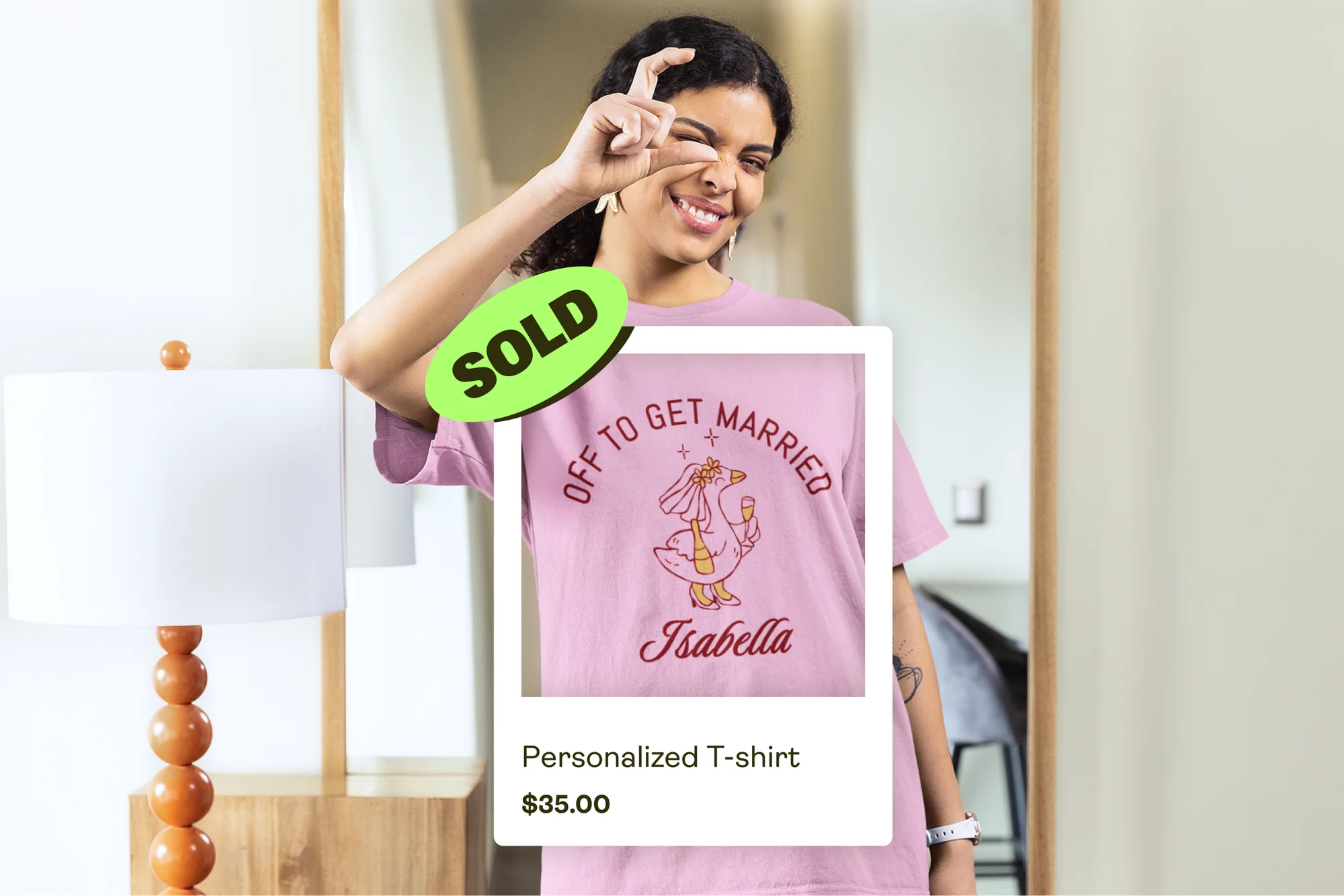
Live Previews – launching on Printify at the end of June 2026 – let buyers see their personalization before placing an order. Available only for Printify merchants at launch, the feature bridges the gap between customization and confidence when shopping for personalized products. Instead of guessing how a name or message will look on a product, buyers see it rendered in real time – right on the listing page.
How Live Previews work
With Live Previews, buyers see a real-time mockup of their personalized product as they fill in personalization fields on the Etsy product page. The preview updates instantly as they enter names, messages, or other customization details on both desktop and mobile.
This feature launches for apparel first, with more product categories rolling out across the Printify Catalog in the upcoming months.
Why use Etsy personalization with Printify?
- Higher profit potential: Personalized products often sell at higher prices than standard items. With Printify, you can offer customization without adding extra fulfillment complexity.
- More completed sales: Buyers see their custom request appear on the product in real time, which builds purchase confidence, reduces questions, and leads to fewer abandoned carts.
- Fewer mistakes and revisions: Seeing the finished design before checkout helps buyers catch typos, formatting issues, and other errors – reducing post-purchase changes and support requests.
- Simple to manage and grow: Printify combines design tools, personalization settings, Etsy syncing, and automated fulfillment in one dashboard. Whether you’re handling a handful of personalized orders or hundreds, the workflow stays the same.
Common Etsy personalization mistakes to avoid
Setting up Etsy personalization is pretty straightforward – but a few small mistakes can create confusion for buyers and extra work for you later. Here are some of the most common ones:
- Making a required field optional: If you need a name, photo, or other personalization detail to fulfill the order, mark it as required. Otherwise, buyers may complete their purchase without providing the item details you need.
- Giving buyers too little guidance: Buyers can type almost anything into a personalization field. Clear instructions, examples, and character limits help keep personalization details accurate and usable.
- Not testing long or unusual inputs: Test personalized orders with different name lengths, special characters, and formatting before you publish.
- Offering too many choices: Too many fonts, colors, or personalization options make ordering feel more complicated. Keep it simple.
- Requesting multiple details in one field: Asking for multiple details in a single text box increases mistakes. Use separate fields.
- Using vague labels: “Add personalization” tells buyers nothing. Be specific about what you actually need.
- Forgetting about mobile shoppers: Many Etsy purchases happen on mobile devices. Test your instructions, dropdowns, and upload fields on smaller screens.
- Skipping a test order: A sample order is one of the easiest ways to catch problems before your customers do.
FAQ
Start selling personalized products with Printify on Etsy today
Personalization isn’t a niche anymore. It’s one of the biggest opportunities on Etsy – and sellers who get the setup right can offer products that feel meaningful while building a more profitable shop.
With Printify, you can manage text fields, dropdowns, image uploads, automated fulfillment, and Live Previews from one place. Less manual work and a smoother experience for both you and your customers.
Ready to build your Etsy business? Create your free Printify account and launch your first personalized product, or explore our top personalization picks for inspiration.