


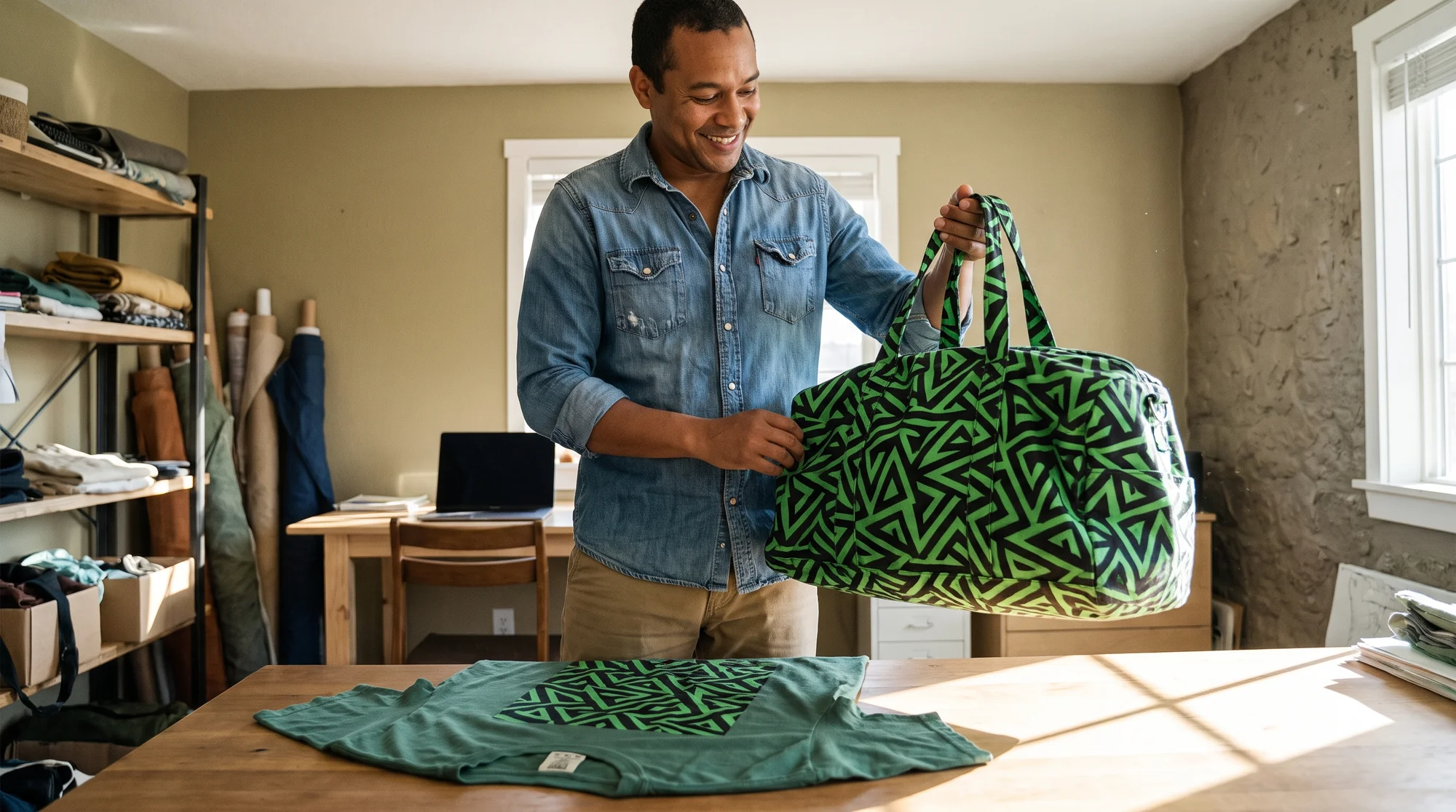
Every time you put a winning design on a bigger or fancier blank, it pixelates, gets rejected, and kills your momentum. The fix is a vector file: it uses mathematical formulas (anchor points, lines, and curves) instead of fixed pixel grids, which makes it infinitely scalable — you can blow up one design from a 2-inch neck tag to a 6-foot banner with zero loss of sharpness. Below, you'll build one master file in five minutes, then flip it across every premium blank in your catalog with zero re-work.
The hidden profit leak
You spend hours finding a winning design. Then a rejected file stops you cold right when you should be scaling.
The re-upload death spiral
Here's how it goes: you upload a blurry file, it gets rejected, you jump back into design software to reformat it, and by the time you're done, your trending design has cooled off. That momentum you built? Gone. The window to ride a hot trend is short, and reformatting eats it alive.
The math you're ignoring
Every hour you spend reformatting a best-seller for a new blank is high-margin profit you're burning. That's an hour you could spend launching new designs, testing fresh niches, or simply living your life. Rejected files don't just cost time — they cost the compounding income a scaled winner would have earned.
What you actually want
Your real goal is simple: launch fast, test fast, and scale winners across products without ever touching design software again. One master file. Dozens of premium blanks. Zero re-work. That's the whole game.
Raster vs vector reality
Most rejected files come down to one thing: you're using the wrong type of file for the job. Here's the plain-English breakdown.
Why your design pixelates
Raster images (PNG, JPEG) are built from a fixed grid of pixels. Stretch them beyond their native 300 DPI dimensions and the grid reveals itself — you get blocky, blurry edges. This is exactly why your trending design looks crisp on a tee but falls apart on a large-surface product like a weekender bag.
Why vectors never break
Vectors (SVG, AI, EPS, PDF) don't store pixels. They store math. When you resize a vector, it dynamically recalculates its line curves at the new size, so edges stay razor-sharp no matter how big you go. That makes them perfect for typography, line art, and geometric logos.
The one-time-setup mindset
Build the master once, reuse it forever. That's the shift. Instead of reformatting per product, you create a single scalable asset and deploy it everywhere.
One caveat: vectors are for logos, text, and line art — not photos. Photographs are naturally raster and should stay high-DPI PNG or JPEG.
When vectors are mandatory
For some products and production methods, a vector file isn't a nice-to-have. Submit anything else and it gets rejected. Know these before you list.
Large-surface lifestyle items
Big print areas magnify every flaw. Reach for vectors when you're printing:
- All-over-print weekender bags
- Fleece blankets
- Outdoor banners and large signage
Specialized production methods
These methods physically can't work from a fuzzy raster file. They require clean vector paths:
- Screen printing — separates colors along vector paths
- Laser engraving — follows vector lines to cut and burn
- Custom vinyl cutting — traces the vector outline to cut material
Quick reference cheat sheet
Ask yourself: Which of my products demand a vector file?
| If your product is... | Vector needed? |
|---|---|
| Small logo on a tee (DTG print) | High-DPI PNG is fine |
| All-over-print bag or blanket | Yes |
| Screen-printed apparel | Yes |
| Laser-engraved item | Yes |
| Vinyl-cut decal | Yes |
| Photo-based design | No (use high-DPI raster) |
5-minute master file setup
You don't need to be a designer to build a bulletproof master file. You just need the right tool and one clean export.
Step 1: Design in a vector program
Build your master logos and text layouts in a vector program. Note that these are third-party tools, not Printify products:
- Adobe Illustrator — the industry standard
- Inkscape — free and powerful
- Figma — browser-based and beginner-friendly
Step 2: The copy-paste export recipe
Once your design is done, export it in a format that maps cleanly onto any blank:
- High-resolution transparent PDF (best for scalability), OR
- High-DPI PNG (300 DPI or higher, transparent background)
Step 3: Save it right, store it once
Name the file so you'll actually find it later — something like BrandLogo_Master_Vector.pdf. Store it in one dedicated "master assets" folder. This is the file you'll reuse forever, so treat it like the money-maker it is.
Flip designs with Product Creator
Here's the payoff. Once your master file is ready, you never open design software for that design again. You map it onto blanks directly inside Printify.
Upload your master and map it
Open the Product Creator in the Printify Catalog, upload your transparent PDF or high-DPI PNG, and drop your crisp graphic onto premium blanks. The file scales cleanly to each product's print area — no pixelation, no rejection.
Real example: Same design, two products
Take one master file and run it on both:
- A Comfort Colors 1717 Garment-Dyed Tee for that premium vintage look
- An insulated tumbler for the drinkware crowd
Same file. Two totally different products. Zero re-work.
Scale the winner in minutes
Once a design tests well, this is where you print money. Deploy that same master across your entire catalog — hoodies, mugs, bags, blankets — in minutes. You're not designing anymore. You're scaling. That's the difference between a hobby and a business, and it's how you keep Printify's four promises working for you: Profitability, Quality, Selection, and Speed.
The anti-friction checklist
Run this 10-second check before every upload. It's the difference between a smooth launch and the re-upload death spiral.
- File format confirmed — transparent PDF or high-DPI PNG?
- Master file saved — stored in your reusable assets folder?
- Product-method match confirmed — screen print, laser, vinyl, or large-surface? Then it's vector.
If all three are checked, you're clear to scale.
Your next move
Open your best-selling design in Illustrator, Inkscape, or Figma and export it once as a transparent PDF or high-DPI PNG. Then upload it through the Product Creator and map it across a Comfort Colors 1717 Tee and an insulated tumbler. Prove to yourself that one master file scales to every premium blank — with zero rejections.
Build it once. Sell it everywhere. Kiss the reformatting grind goodbye.