

You're losing $4–$5 in shipping on every Print on Demand order, and your local buyers and Instagram followers rage-quit at checkout the second that fee appears. The fix is Shopify local pickup: let the people standing right in front of you at your Pop-up Store grab their hoodie on the spot at 100% margin, while Printify quietly ships every out-of-town order in the background. Below, you'll set up a Local Pickup Location, assign physical inventory to it, dial in your pickup notifications, and stock the right blanks to run both fulfillment lanes from one store.
The shipping fee killing profit
Shipping costs feel small until you multiply them across every order and every abandoned cart. For local buyers, that fee is pure friction, and it's costing you sales you should already own.
Why local buyers abandon carts
Here's the pain: someone sees your design at a pop-up or on Instagram, taps "buy," then hits a $5 shipping charge for an item they could grab from your hands in ten seconds. That mismatch feels absurd, so they close the tab.
Local pickup removes the friction. When a buyer can reserve online and collect in person, there's no shipping fee to trigger the exit. You capture the sale at the exact moment of excitement.
The 100%-margin math
When you eat zero shipping cost, you keep everything above your blank cost. That's the whole game.
- Mail order: Sale price − blank cost − shipping = your profit.
- Local pickup: Sale price − blank cost = your profit (no shipping line, and you already own the blank).
Pre-stocking a batch of blanks means you buy once at wholesale and pocket the full retail margin on every unit you hand over in person.
Run both fulfillment methods
The big lie is that you must pick between self-stocking or automated Print on Demand. You don't. You can run both lanes inside a single Shopify store.
Stocked blanks cover instant local pickup. Printify auto-fulfills the exact same designs for everyone who's out of town. One store, two revenue streams, zero conflict.
The hybrid playbook
The magic is separation. Physical inventory feeds pickup; Printify feeds the mail. Shopify keeps them from crossing wires.
Lane 1: Pre-stocked blanks for pickup
This lane serves anyone who can reach your studio, retail space, or pop-up table. You order a batch of your top designs ahead of time, assign them to a pickup location, and offer same-day collection.
The benefit: full margin, instant gratification, and a buyer who walks away wearing your brand today.
Lane 2: Printify handles mail orders
This lane runs itself. When a customer outside your area orders, Printify routes it to a Print Provider, prints on demand, and ships it, hands-off. You never touch a box.
This is where Printify's promises carry the weight: Quality blanks, Speed in fulfillment, and a deep Selection so your mail catalog can be far larger than what you physically stock.
Why this won't eat your weekend
Setup is a few clicks, not a store rebuild. You create one new location, assign inventory, and customize one email template. After that, both lanes run on autopilot every time you publish a product or post to Instagram.
Step 1: Set up local pickup
Shopify decides who sees the "Pickup" button based on location-specific inventory. Get the inventory mechanics right and everything else falls into place.
How Shopify picks who sees "Pickup"
Shopify only shows the pickup option for items that have physical inventory assigned to a location where pickup is turned on. No stock at that location means no pickup button. This is your safety switch.
That means your Print on Demand-only items, which have no physical stock at your studio, will never accidentally offer pickup. You control it entirely through inventory assignment.
Create a Local Pickup Location
This is the critical move. You need a dedicated location that represents your real-world spot.
- In Shopify admin, go to Settings > Locations and add a new location (your studio, retail space, or pop-up address).
- Go to Settings > Shipping and delivery > Local pickup and enable pickup for that location.
- Assign real, physical inventory counts to that location for each blank you've pre-stocked.
Now, and only now, will those stocked items show the pickup option at checkout.
The mistake that breaks everything
Keep Print on Demand-only items assigned exclusively to your Printify or third-party app location, never to your Local Pickup Location.
If you accidentally assign a Print on Demand-only item to your pickup spot, a customer could "reserve for pickup" a product that doesn't physically exist yet. That's a broken promise and an awkward apology. Keep the lanes clean: physical stock at the pickup location, Print on Demand-only stock at the app location.
Quick sanity check
Before you go live, test it. Add one stocked blank and one Print on Demand-only item to your cart in an incognito window and run checkout.
- The stocked blank should offer Pickup.
- The Print on Demand-only item should offer Shipping only.
If both behave correctly, your inventory mechanics are locked in.
Step 2: Dial in the pickup notification
A pickup order isn't done until the customer shows up. A vague notification gets you ghosted; a clear one gets you paid.
Customize the automated template
Shopify sends a "Ready for pickup" email or SMS automatically. The default text is generic, so make it specific.
Go to Settings > Notifications and edit the pickup templates. Write them the way you'd give directions to a friend, plain and clear.
What must go in it
Leave nothing to guesswork. Every pickup notification should include:
- Exact pickup hours (and days).
- Full street address with a map link.
- ID requirements (name on the order, photo ID if needed).
- Parking and entrance instructions (which door, which floor, where to park).
Clear instructions mean fewer confused messages and more buyers who actually walk in the door.
Pro move: A pop-up-specific window
For a pop-up, add a same-day pickup window right into the notification, for example, "Grab it today between 2–6 PM at Booth 14." That urgency turns a "later" into a "now" and brings buyers over with cash-in-hand energy.
Step 3: Stock the right blanks
Your stocked inventory is your instant-profit engine. Choose blanks people already want to own and wear the moment they see them.
3 top-selling blanks to batch-order
These are proven, high-perceived-value pieces buyers happily pay full price for in person:
- Comfort Colors 1717 Tee — the soft, garment-dyed favorite with a premium feel.
- Lane Seven Heavyweight Hoodie — a thick, structured hoodie that reads high-end.
- Gildan 18000 Crewneck — a classic, versatile crewneck with broad appeal.
Great print quality on these blanks means customers leave excited, which also fuels reviews and word of mouth.
How to order physical batches
Use Printify's bulk sample and store inventory system to order physical batches of your chosen blanks with your designs already printed. This lets you buy in volume, stock your studio, and hand product over on the spot, all backed by Printify Quality so what you sell in person matches what you ship online.
The dual-lane magic
Here's the payoff: your stocked batch covers local pickup at 100% margin, while Printify auto-fulfills the exact same designs for nationwide mail orders. One design, two lanes, no extra work. Sell out your physical batch? The design keeps selling online through Printify without missing a beat.
Restock rhythm: How much to stock
Over-buying ties up cash; under-buying loses sales. Aim for a lean batch you can realistically sell at one event.
- First pop-up: Start conservative, roughly 10–20 units of your top design, split across your best-selling sizes.
- After each event: Track what sold and what stayed. Reorder your winners, drop your slow movers.
- Sizing: Weight your batch toward mid-range sizes (M, L, XL), which usually move fastest.
Adjust with real data. Two or three pop-ups in, you'll know your numbers cold.
The same-day pop-up cash flow
Now put it all together into one repeatable routine that turns a single Instagram post into both instant cash and background mail sales.
Before the pop-up
Get your store ready so the pickup option is live and working.
- Publish your products in Printify and push them to Shopify.
- Order and receive your physical blank batch.
- Assign that physical inventory to your Local Pickup Location.
- Run the incognito checkout test one more time.
At the pop-up
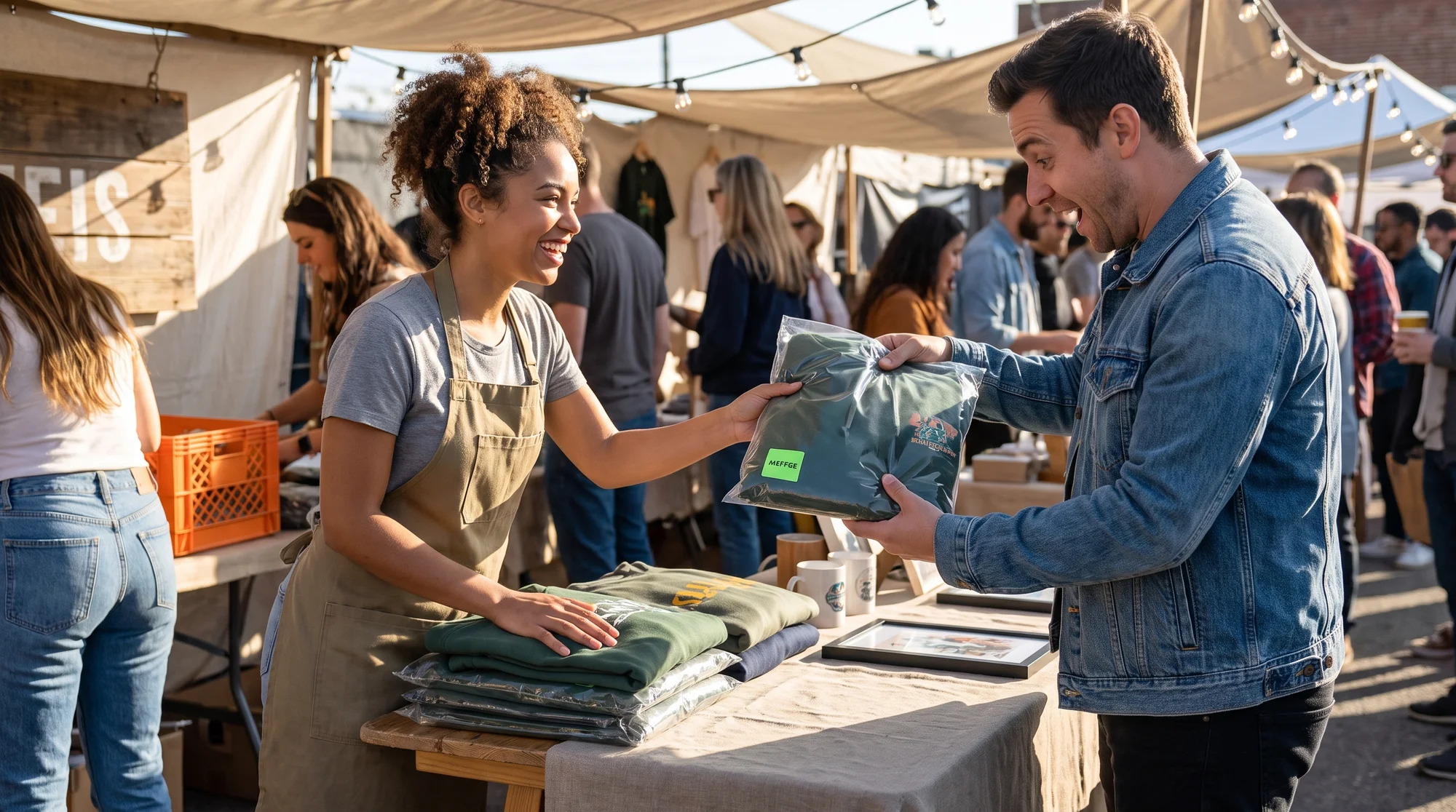
Turn your audience into same-day buyers. Post "Reserve now, pick up today" to your Instagram followers with your booth location and pickup window.
This kills cart abandonment on the spot. Locals reserve online, skip the shipping fee, and collect from your table minutes later, handing you full margin.
After the pop-up
Every out-of-town order that came in from the same post? Let Printify quietly ship it. You do nothing. The mail lane fulfills itself while you pack up your booth.
FAQ
What if a pickup item sells out?
Nothing breaks. When physical inventory at your pickup location hits zero, Shopify automatically stops offering the pickup option for that item. The design stays live for mail order through Printify, so you keep selling, just in the mail lane instead of the pickup lane.
Do mail-order customers see pickup?
No. Shopify only shows pickup for items with physical inventory at a pickup-enabled location. Since your Print on Demand-only items are assigned exclusively to your Printify or third-party app location, they never qualify for pickup. Customers outside your area only ever see shipping.
How much setup time is needed?
Less than a slow Saturday. You create one location, flip on local pickup, assign inventory, and customize one notification template. Do it once, and both lanes run forever with no ongoing admin.