

Every export-import cycle, license fee, and Photoshop cleanup step is a direct hit to your margin and your speed-to-trend. AI t-shirt generators use diffusion and vector model architectures to generate custom apparel graphics directly from text prompts. Modern 2026 platforms differentiate themselves by offering native transparent background exports, high-DPI upscaling, clean typography rendering, and vector SVG conversions required for commercial print production.
The fastest way to profit from them is to skip the export-import shuffle entirely: generate your design inside a tool that lives right next to your product, verify the resolution, and publish in one pass.
The hidden margin killer: workflow friction
Every time you jump from your AI generator to Photoshop to your Print on Demand dashboard, you're not just wasting an hour — you're bleeding margin and watching a trend window slam shut before your listing even goes live.
The 4-app death loop
Most creators run the same exhausting circuit: generate art in one tool, clean it up in an editor, isolate the background in Photoshop, then upload to a Print on Demand platform. That's four apps for one listing.
Here's what that loop actually costs you:
- Time: 45–90 minutes per listing when you factor in re-generations, file conversions, and re-uploads.
- Trend windows: Viral moments last days, not weeks. A four-app flow means you're publishing after the wave has already crested.
- Errors: Every export and import is a chance for the wrong DPI, a botched transparency, or a compressed file to sneak into your listing.
Why 'just make a design' advice fails
The internet is full of "just make a design and sell it" advice. It misses the point. Your bottleneck was never creativity — it's the friction between your tools that kills momentum and eats profit.
You don't need more design ideas. You need fewer steps between the idea and the live listing.
License landmines that trigger takedowns
A "free" AI tool isn't free if it costs you your shop. Many generators grant murky or tier-locked commercial rights, and some produce art that leans too close to trademarked characters or logos. Publish that to Etsy or Amazon Merch, and you're one report away from a takedown — or a suspended account. We'll cover exactly how to audit this below.
What matters in a 2026 generator
Not every generator is built for selling. Three things separate a hobby tool from a money-making one.
1. Vector and transparency features
Avoid raw raster-only generators that spit out solid backgrounds or compressed JPEGs. Those files scream "hobby" on a print, and cleaning them up by hand burns the time you should be spending on your next listing.
Third-party platforms like Ideogram 2.0 or Kittl AI (both external tools, not owned by Printify) are known for crisp text rendering, clean isolation, and instant vector or 300 DPI exports without manual Photoshop cleanup. The standard to demand is simple: transparent PNG plus SVG at 300 DPI. That's the line between "hobby" and "sellable."
2. Commercial license integrity
Verify platform terms before you publish, not after a takedown notice.
The license audit checklist — 4 questions before your first listing:
- Do I get full commercial rights on the free tier, or only after I pay?
- Can I sell the output on Etsy, Amazon Merch, and Shopify without extra licensing?
- Does the platform hold or claim ownership over what I generate?
- Are there restrictions on print volume or resale quantity?
If a tool can't answer all four with a clean "yes, you're covered," treat it as a liability.
3. Text rendering that holds up
Typography niches — funny sayings, city names, and hobby slogans — live or die on clean lettering. "Fast draft" modes on many generators garble text into nonsense characters. For any typography-driven design, always render at print quality before you commit. Garbled letters mean refunds and one-star reviews.
Gap analysis: why big-name tools cost you
The popular tools each solve one piece of the puzzle and leave you holding the friction.
RushOrderTees: built for occasions
Great for a one-off family reunion tee. Useless for a repeatable Print on Demand business. It's locked into occasion-based ordering, not profit-based scaling.
Canva: manual template editing
Drag-and-drop is fine for a single graphic, but you're still hand-building every listing and exporting the file out to your Print on Demand platform. Canva is a third-party design app, not a Print on Demand workflow — every design is a manual project.
SizzlePop and Kittl: export-then-import
Both are powerful third-party generators. But both force the same routine: generate, export, then re-upload into your Print on Demand platform. That reintroduces the exact friction you're trying to kill. Kittl also gates full commercial rights behind its Pro and Expert tiers.
The common thread
Every one of these tools adds a step between you and a live listing. That step is where your time and margin leak out.
The zero-export flip in action
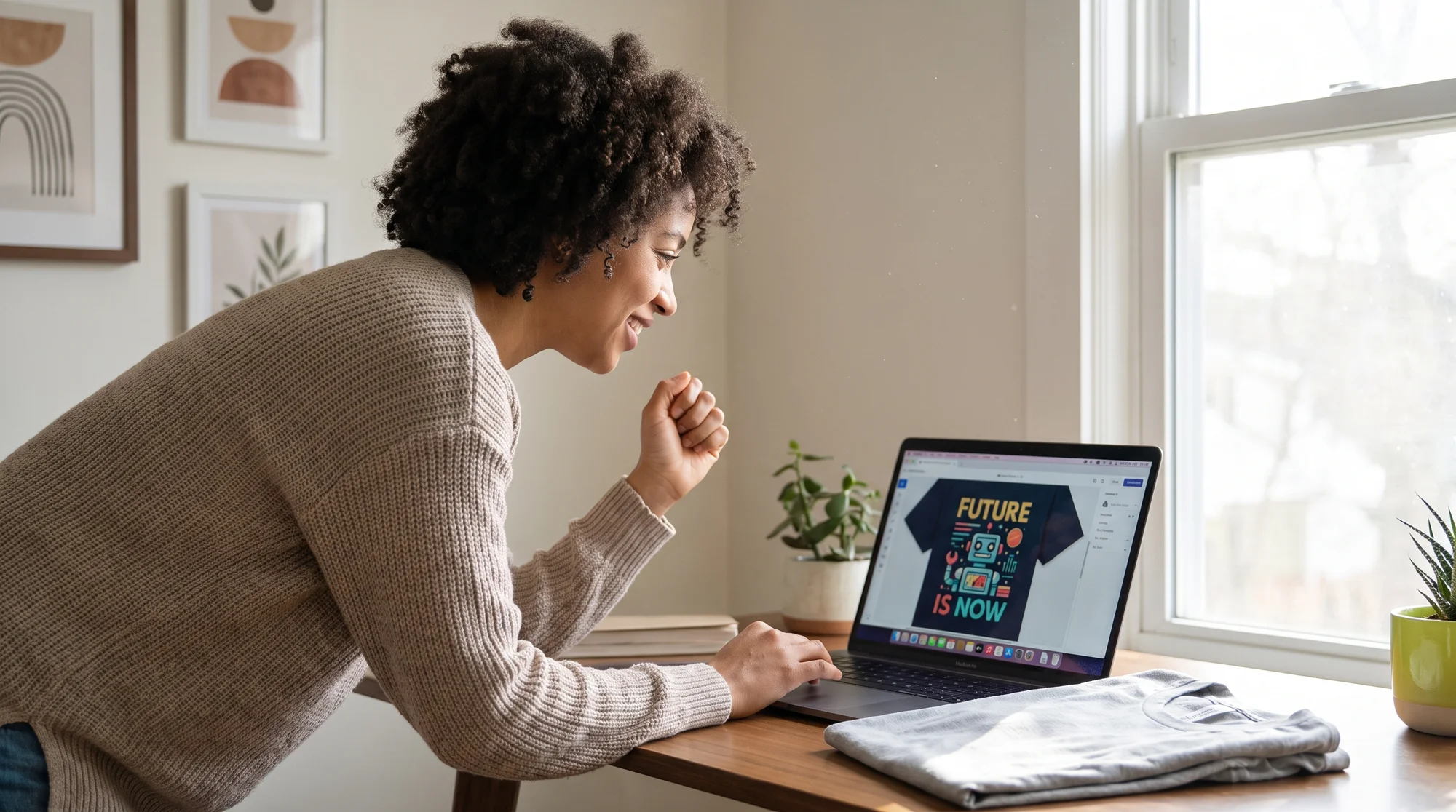
Here's the fix: stop moving files between apps. Printify's AI Image Generator lives right inside the Product Creator, so you generate, place, and publish in one uninterrupted flow.
Skip every third-party export step
Generate your artwork directly inside the Printify Product Creator. No download. No re-upload. No hunting through license terms. The design is created where the product already lives.
Generate onto best-seller blanks
Your design lands directly on high-margin blanks from the Printify Catalog, provided by trusted Print Providers:
- Comfort Colors 1717 Tee — the vintage-heavyweight Etsy darling that shoppers pay a premium for.
- Bella+Canvas 3001 — the retail-fit workhorse with the softest, most consistent print surface.
- Shaka Wear Max Heavyweight — the streetwear margin play for a bold, elevated feel.
Auto-verify resolution and placement
The Mockup Generator confirms your DPI and print-area placement before anything goes live. No more publishing a listing only to discover it prints blurry. That's our Quality promise doing the heavy lifting for you.
The full flow, timed
Prompt → blank → verified mockup → live listing, in one pass. No app-switching. No export tax. That's Speed and Profitability working together.
From prompt to live listing
Step 1 — write a print-ready prompt
Keep it word-light so text and details render clean. Use this formula:
[Subject], [Style], [Details], "Text in quotes"
Examples:
- "Retro sunset mountain range, vintage 70s print style, muted earth tones, 'Take the Long Way' in bold serif."
- "Cute cartoon cat holding coffee, bold sticker style, thick outline, no background."
Fewer words means cleaner lettering and sharper isolation.
Step 2 — generate onto your blank
Open the Product Creator, pick your blank (Comfort Colors 1717, Bella+Canvas 3001, or Shaka Wear Max Heavyweight), and run your prompt right onto it.
Step 3 — verify DPI and placement
Check that your design hits 300 DPI at final print size and sits correctly inside the print area using the Mockup Generator. Adjust placement if needed. This is your last quality gate — use it.
Step 4 — publish without leaving the flow
Connect your store and push the listing live directly from Printify to Etsy or TikTok Shop. No file leaves your workspace.
Step 5 — batch and repeat
Once you've timed one flow, run the next prompt immediately. Batch several designs while a trend is hot and publish before the window closes. Speed is the whole point.
FAQ
Is it really free to generate?
Yes — the AI Image Generator is built into the Printify Product Creator at no extra tool cost. You only pay when you order a product.
Do I own the commercial rights?
You get the rights you need to sell the products you create through Printify. Always avoid prompts that request trademarked characters, brand logos, or copyrighted art, since those trigger takedowns no matter which tool made them.
What DPI should a design be?
300 DPI at final print size. Anything lower risks a blurry, pixelated print. The Mockup Generator helps you confirm this before publishing.
Will the print match the mockup?
The Mockup Generator shows accurate placement and sizing so what you see is what you get. Verifying DPI and placement before you publish is how you keep prints matching previews.
Which blank has the best margin?
Start with the Comfort Colors 1717 if you're targeting Etsy's vintage-tee shoppers who pay a premium. Choose the Bella+Canvas 3001 for soft, reliable retail fit, or the Shaka Wear Max Heavyweight for a streetwear look with strong margins.
The bottom line: own your speed
Every export, every re-upload, and every license hunt is a tax on your time and your profit. The merchants winning in 2026 aren't the most creative — they're the fastest from idea to live listing.
Stop paying the "export tax." Open the Printify Product Creator, fire your first prompt directly onto a Comfort Colors 1717, Bella+Canvas 3001, or Shaka Wear Max Heavyweight, verify the resolution in the Mockup Generator, and push it live to Etsy or TikTok Shop in one uninterrupted flow — no third-party tool, no license roulette, and no cleanup.
Start your first zero-export flip listing today. More money. More autonomy. More living.